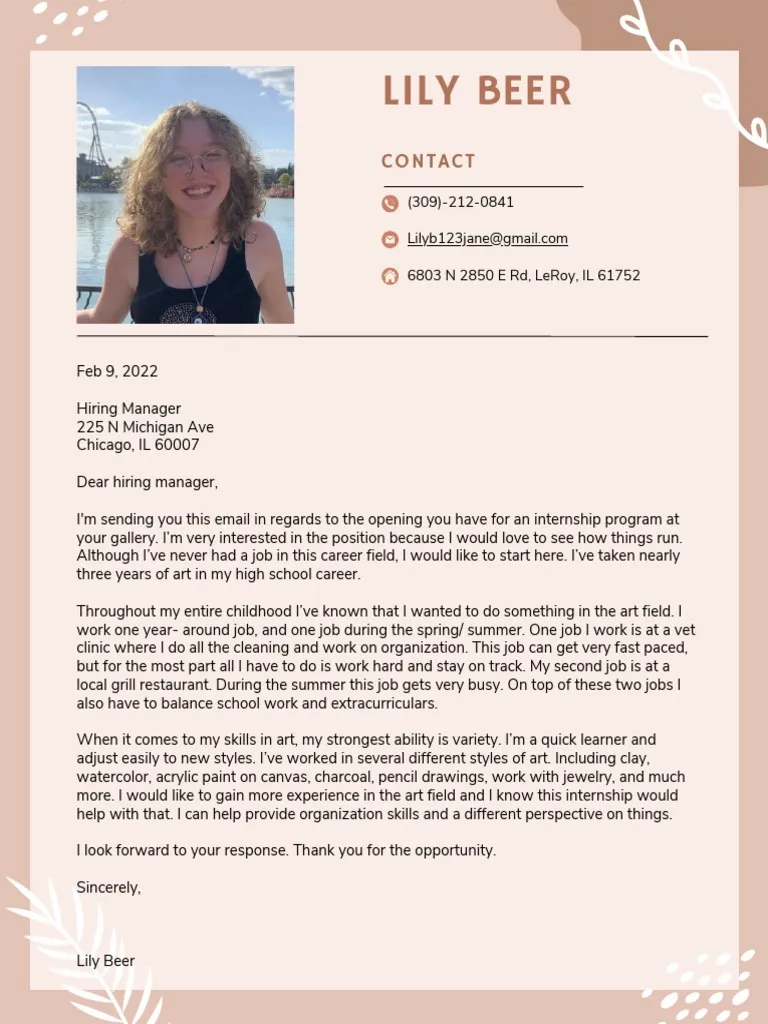
Why Save Your Cover Letter as a PDF?
In the competitive world of job applications, every detail matters. Your cover letter is often the first impression you make on a potential employer, making its presentation crucial. Saving your cover letter as a PDF (Portable Document Format) is a fundamental practice that can significantly enhance its professionalism and ensure it’s viewed as intended. This guide will walk you through the essential steps to create a polished, professional-looking cover letter PDF in minutes, improving your chances of landing your dream job. The benefits of using a PDF extend beyond mere aesthetics; they safeguard your document’s integrity and demonstrate your attention to detail.
Advantages of a PDF Cover Letter
The advantages of using a PDF for your cover letter are numerous. First and foremost, PDFs preserve the formatting of your document. When you create a cover letter, you carefully choose fonts, layouts, and spacing to create a visually appealing and easily readable document. However, if you send it as a DOC or DOCX file, there’s a risk that the recipient’s system might alter the formatting, leading to a disorganized and unprofessional appearance. A PDF ensures that your cover letter appears exactly as you designed it, regardless of the recipient’s software or operating system. This consistency is vital for making a positive first impression. Furthermore, PDFs are highly compatible across different platforms, which means they can be opened and viewed on virtually any device, from computers to smartphones, without requiring special software. This universal compatibility streamlines the application process for both you and the hiring manager.
Ensuring Compatibility and Preservation

Compatibility is key in the digital age. PDFs are designed to be universally accessible. They render consistently across different devices and operating systems, ensuring that your carefully crafted cover letter looks perfect whether it’s viewed on a Windows PC, a Mac, a tablet, or a smartphone. This widespread compatibility eliminates the risk of formatting errors and ensures that your message is conveyed accurately. Preservation is another critical advantage of PDF. PDFs are designed to preserve the original formatting, fonts, images, and overall layout of your cover letter. Unlike other file formats, PDFs are not easily modified, ensuring that your cover letter remains unchanged and represents your work faithfully. This preservation of design and content is crucial for maintaining professionalism and credibility. Think of it as a digital snapshot of your cover letter, ensuring that the recipient sees exactly what you intended.
Formatting Your Cover Letter for PDF Conversion
Before converting your cover letter to PDF, ensure it’s impeccably formatted. This is your chance to fine-tune the presentation and make sure your cover letter looks its best. Begin by selecting a professional and legible font, such as Times New Roman, Arial, or Calibri, with a font size between 11 and 12 points. This font choice should be consistent throughout the document and easy on the eyes. Ensure clear and concise language, using short, direct sentences. Avoid jargon or overly complex phrasing that might confuse the reader. Use appropriate margins and spacing to create a clean, uncluttered layout. Standard margins of 1 inch on all sides are generally recommended. Double-space between paragraphs for better readability. Proofread meticulously for any spelling or grammatical errors. Errors detract from your credibility and make a negative impression. Consider using bullet points for lists, making the information easier to digest. Finally, organize the content logically, with a clear introduction, body paragraphs, and a concise conclusion. A well-formatted cover letter is not only aesthetically pleasing but also easy for the reader to understand and engage with, thus increasing your chances of success. (Image: pdf-cover-letter-formatting)
Choosing the Right Software
Creating a PDF from your cover letter is straightforward, thanks to the numerous software options available. The best choice often depends on your existing tools and preferences. The primary applications that come to mind include Microsoft Word, Google Docs, and various other software solutions. Most word processing programs offer built-in capabilities to save your document as a PDF, making the conversion process simple and efficient. Choosing the right software ensures not only a seamless conversion but also that the final PDF file maintains the formatting integrity of your cover letter. Consider factors such as ease of use, features, and compatibility when making your selection.
Microsoft Word

Microsoft Word is a widely used word processor that offers robust PDF conversion capabilities. With Word, you can format your cover letter with ease, using various fonts, styles, and layouts. Once your cover letter is ready, saving it as a PDF is a simple process. Typically, you’ll go to the ‘File’ menu and select ‘Save As.’ In the ‘Save as type’ dropdown menu, choose ‘PDF.’ Word will then save your document as a PDF, preserving the formatting and layout. This method is reliable and ensures that your cover letter appears exactly as you intended. Moreover, Microsoft Word usually allows for customization options like adding password protection or optimizing the PDF for web use. For many, Microsoft Word is the go-to solution due to its familiar interface and comprehensive features. (Image: microsoft-word-cover-letter)
Google Docs
Google Docs, a free, web-based word processor, provides an accessible and convenient option for creating and saving cover letters as PDFs. Google Docs is accessible from any device with an internet connection. Creating a cover letter in Google Docs is straightforward, and you have access to various formatting options, including font styles, sizes, and layouts. Once your cover letter is ready, saving it as a PDF is very easy. Simply go to the ‘File’ menu, select ‘Download,’ and choose ‘PDF Document (.pdf)’. Google Docs will then convert and download your cover letter as a PDF, preserving its formatting and layout. Google Docs is an excellent choice if you need easy access and collaborative features. (Image: google-docs-cover-letter)
Other Software Options
Beyond Microsoft Word and Google Docs, there are various other software options available for creating and saving cover letters as PDFs. These can range from free, open-source programs to professional-grade tools. Many word processors such as LibreOffice Writer or Apple Pages, offer similar functionalities. Some users may prefer online PDF converters, which allow you to upload your document and convert it without installing any software. Be cautious about security when using online converters. Always ensure the service is reputable and protects your data. Consider the features you need, such as advanced formatting options, image integration, or security features, when selecting your software. Regardless of your choice, the objective remains the same creating a polished, professional PDF copy of your cover letter.
Step-by-Step Guide to Saving as PDF

Saving your cover letter as a PDF is a quick and easy process. The steps vary slightly depending on the software you’re using, but the core concept remains the same. You’ll usually find the option to save as a PDF within the ‘File’ menu, or in some programs, you may have a ‘Print’ option that lets you ‘print’ to a PDF file. Here’s a step-by-step guide for the most common software options, ensuring a smooth and professional conversion process.
Saving from Microsoft Word
Saving your cover letter as a PDF in Microsoft Word is generally straightforward. First, open your cover letter in Word. Then, click on the ‘File’ menu located in the top left corner of the screen. Next, select the ‘Save As’ option. In the ‘Save As’ dialog box, choose the location where you want to save your PDF. Then, find the ‘Save as type’ dropdown menu and click on it. Select ‘PDF (.pdf)’ from the list of options. Before saving, you might want to explore the ‘Options’ button, which allows you to customize the PDF settings further. For example, you can choose to optimize the PDF for print or online use. Finally, click ‘Save.’ Word will convert your cover letter and save it as a PDF in your chosen location. This ensures that your cover letter retains its formatting and layout and is ready for professional use. (Image: cover-letter-pdf-saving)
Saving from Google Docs
Saving your cover letter as a PDF in Google Docs is equally simple. First, open your cover letter in Google Docs. At the top of the screen, click on the ‘File’ menu. Then, select ‘Download’ from the dropdown menu. From the ‘Download’ options, choose ‘PDF Document (.pdf)’. Google Docs will automatically convert your cover letter and download it to your device as a PDF file. There are no advanced options to adjust; the process is designed for simplicity. Your cover letter, complete with its intended formatting, will now be saved as a PDF, ready for submission to potential employers. This streamlined process is one of the many reasons why Google Docs is favored for its convenience and ease of use.
Reviewing and Finalizing Your PDF

After saving your cover letter as a PDF, it’s crucial to review and finalize the document. This is your final opportunity to ensure that your cover letter appears exactly as you intended. Open the PDF file and carefully check all aspects of the document. Verify that the formatting is consistent, that the fonts are correct, and that the layout is visually appealing. Check for any errors in the text, such as typos or grammatical mistakes. A simple error can detract from your professionalism and hurt your chances. Make sure that all your contact information is accurate and up-to-date. Furthermore, ensure that the page margins, spacing, and alignment are correct. Review the PDF on different devices and screen sizes to ensure that it renders correctly. Ensure the document is not cut off or distorted. A thorough review demonstrates your attention to detail and commitment to quality. (Image: cover-letter-pdf-review)
Checking for Errors
When reviewing your PDF, it’s important to meticulously check for errors. This includes spelling, grammar, and formatting inconsistencies. Start by carefully proofreading the entire document for any typos, grammatical errors, or punctuation mistakes. Ensure that all sentences are well-constructed and convey your message clearly. Next, examine the formatting. Check that the fonts, headings, and bullet points appear as intended. Verify that the spacing between lines and paragraphs is consistent and easy to read. Also, confirm that your contact information is accurate and up-to-date. Make sure that your email address is professional and that your phone number is correct. Carefully check the file name. Ensure that it’s professional and includes your name and the words ‘cover letter’. Using a well-named file makes it easy for the recipient to identify and organize your application. By diligently checking for errors, you can ensure that your cover letter presents you in the best possible light and increases your chances of success.
Optimizing the PDF for Professionalism
Optimizing your PDF for professionalism enhances your job application. Begin by selecting a professional file name. A file name such as ‘YourName_CoverLetter.pdf’ is clear and professional. Avoid using generic names that might make it difficult for the recruiter to identify your application. Another consideration is the size of your PDF file. Although most recruiters do not impose strict limits, consider the file size. Large files might take longer to download or might be blocked by some email systems. Also, think about the print quality. Ensure that the PDF is optimized for print so that the document prints clearly and legibly. Lastly, consider adding a security feature, like password protection, if the document contains sensitive information. (Image: cover-letter-pdf-accessibility)
Additional Tips for a Perfect Cover Letter PDF

Beyond the essential steps, there are additional tips to help you create a perfect cover letter PDF. Choose a file name that includes your name and the words ‘cover letter’. Make sure the file size is reasonable to avoid download issues. If you are sending the cover letter via email, ensure the file size does not exceed the email provider’s limits. For online applications, follow the instructions provided by the employer or the application portal. Always double-check the uploaded file to ensure it appears correctly. For further refinement, convert your cover letter to a PDF/A format. PDF/A is a specialized version of the PDF format designed for long-term preservation. This ensures that your document will be accessible and readable for years to come, safeguarding its integrity. Make your cover letter accessible to users with disabilities. Ensure that the document is compliant with accessibility standards. Adding alternative text to images makes your document accessible to screen readers. These small details make a big difference. By following these tips, you can significantly enhance the quality of your cover letter PDF.
File Naming Conventions
Choosing the right file naming convention is a seemingly small but important step. Use a consistent, professional file naming structure. The best practice is to include your full name and the term ‘cover letter’ in the file name. For instance, ‘JohnDoe_CoverLetter.pdf’ is clear, concise, and easy to identify. Avoid using dates, as they can become outdated quickly. If the job posting has specific requirements or asks for a specific naming format, be sure to follow those guidelines. This demonstrates your attention to detail. Using a professional file name makes it easy for recruiters to sort and locate your application, improving your chances of getting noticed.
Accessibility Considerations
Ensuring your cover letter PDF is accessible is crucial for inclusivity and can also broaden your reach. Consider individuals who use assistive technologies like screen readers. When creating your PDF, add alternative text (alt text) to any images or graphics in your cover letter. Alt text provides a textual description of the image, allowing screen readers to convey its meaning to visually impaired users. Ensure that the document structure is logical and properly tagged. This includes using headings, subheadings, and lists. Proper tagging enables screen readers to navigate the document more efficiently. Use a clear and readable font. Avoid using excessively small font sizes or unusual fonts that may be difficult to read. Check the color contrast between text and background. Avoid using color combinations that make it difficult for individuals with color vision deficiencies to read the text. Ensure your document is compatible with accessibility standards like WCAG (Web Content Accessibility Guidelines), for a truly accessible cover letter. By prioritizing accessibility, you show that you are inclusive and thoughtful.
Conclusion

Saving your cover letter as a PDF is a simple but vital step in the job application process. It ensures that your document maintains its intended formatting, making your application professional. From choosing the right software, like Microsoft Word or Google Docs, to finalizing the PDF and checking for errors, this guide has covered all the essential steps. By taking the time to convert your cover letter into a PDF, you showcase your attention to detail and a commitment to presenting yourself in the best possible light. Follow the guidelines, and you’ll create a PDF that will impress hiring managers and increase your chances of success in your job search. Now go forth and create a compelling cover letter PDF!